Tickmarks Arc Layer
The Tickmarks Arc layer is used to add the essential tickmarks found on most gauge scales.
On standard vector design apps this is usually done by adding each individual tickmark, with the help of some radial copy tool. That also means that any changes to these tickmarks’ format or pattern must be done to all of them each time, which can be quite time consuming.
GaugeMaster Pro takes advantage of the fact that gauge scale tickmarks usually follow well defined design patterns, providing parametric tools that make adding or editing tickmarks on your gauge scales a breeze.
New Tickmarks Arc layers take their initial angles and divisions from the Canvas Defaults industry selection: the classic 135° start, 270° sweep and 15 divisions for Instruments, or a clock face layout for Horology.
There are two types of Tickmarks Arc layers:
- Linear
- Nonlinear
Linear
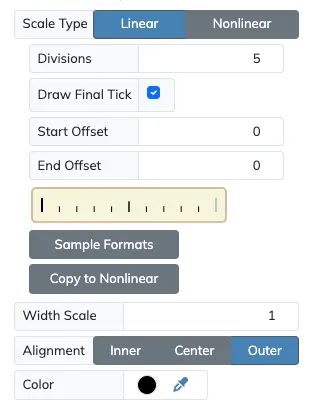

Section titled “Linear”Linear tickmarks are used to create pattern defined tickmark scales. This are made up of tickmarks segments repeated along the arc for a number of major divisions. Tickmarks arcs of this type are redrawn automatically after any settings changes, making it very quick and easy to try new adjustments.
You can learn more about Linear and Nonlinear scales on the dedicated Linear and NonLinear Scales section.
Sample Formats
Section titled “Sample Formats”The Sample Formats button offers a set of ready-made tickmarks segment designs to start from, which you can then adjust with the Scale Format editor. The formats offered depend on the canvas Industry selection:
Instrumentsoffers the twelve classic line formats found on most instrument scales.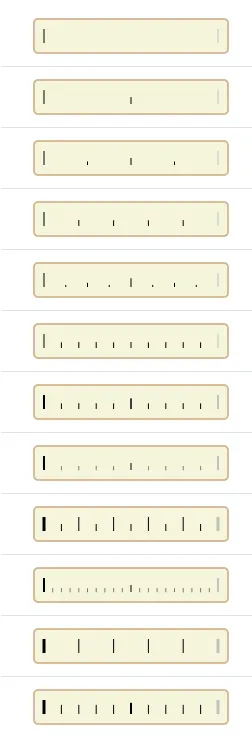
Horologyoffers twenty watch and clock formats instead, from a single hour index to dot, baton, diamond and triangle hour markers combined with line, dot or railway minute tracks, plus the classic line formats that watches share with instruments, like chronograph tenths and dense seconds tracks.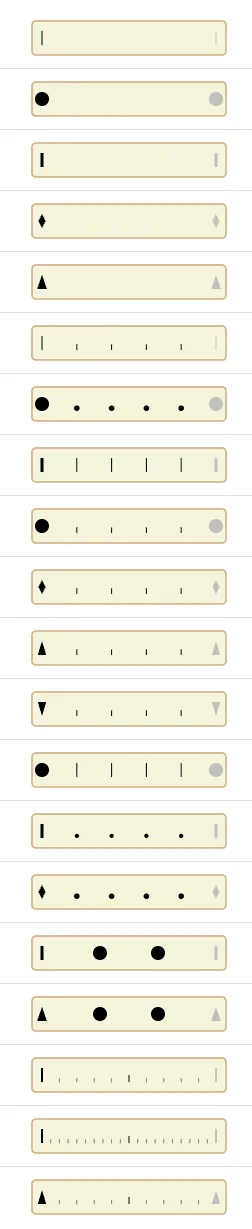
Divisions

Section titled “Divisions”The divisions setting will determine how many times the tickmarks segment design is repeated across the tickmarks arc. Make sure this value matches the one on the Text Arc that is the counterpart numeric scale to a Tickmarks arc.
Draw Final Tick
Section titled “Draw Final Tick”If enabled, the tickmarks arc will have a final tickmark at the very end of the arc that matches the very first tickmark, which is common on most gauge scales. If your gauge tickmarks scale is open ended you may need to disable this option.
Start Offset
Section titled “Start Offset”For gauges where the first segment is not a full major segment, you can adjust the Start Offset to make the gauge start at partial value of the full length of a tickmarks segment. The value on this setting will go from 0 to 0.99, being 0 the default value for a full segment length.
Major Start Tick
Section titled “Major Start Tick”When using offset tickmarks arc start you have the option of making the first tickmark match the first tick mark of the segment, or show the true tickmark of the selected offset position.
End Offset
Section titled “End Offset”Like for the Start Offset there is a similar option for the end of a tickmarks arc, but in this case the value will be negative as it is subtracting from a full segment length. In this case the value will be from 0 to -0.99, being 0 again the default value for a full segment length.
Major End Tick
Section titled “Major End Tick”As with Major Start Tick you can enable or disable to have a major tickmark at the end of the gauge, or show the true tickmark of the selected offset position.
Nonlinear
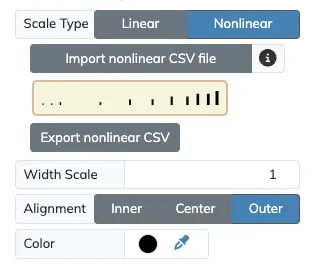
Section titled “Nonlinear”Nonlinear tickmarks are used when you need a more flexible design of your scales, allowing tickmarks to be at arbitrary positions.
For more details check the dedicated Linear and NonLinear Scales page for thorough details on how to use both types of scales.
Scale Format
Section titled “Scale Format”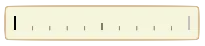
The Scale Format editor button, the tickmarks preview button that always displays the current tickmarks design, opens the list that defines the tickmarks of the layer. On a linear scale these are the subsegments of the repeated segment, and the individual tickmarks on a nonlinear scale. Each row on the list sets the Count of tickmarks (linear only), their Length, their Shape and, depending on the shape, their Width or Width Ratio, plus a visibility toggle. See the Linear and NonLinear Scales page for how the subsegments build up a scale and all the details of the editor.
Width Scale
Section titled “Width Scale”The Width Scale setting multiplies the width of every tickmark on the layer at once, which is a quick way to make a whole scale bolder or finer without editing each subsegment.
Alignment
Section titled “Alignment”The Alignment setting positions the tickmarks inside the arc width, towards the Inner radius, at the Center or towards the Outer radius. It positions every tick shape inside the tickmarks arc the same way it positions lines.