The magic of snapping
Snapping is an editing interaction on the Canvas that helps speed up the design of your gauges. Unlike standard design apps, GaugeMaster Pro provides radii and angle snapping, to quickly match the current arc’s radii or angles against any other on the Canvas.
Snapping positions are shown with a dashed blue arc (for radial snapping) or line (for angle snapping).
Any layer on the Canvas can be excluded from the snapping checks by toggling off its Snapping setting.
Global Snapping
Section titled “Global Snapping”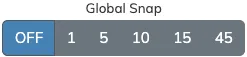
When enabled, Global Snapping allows us to restrict any radii or angle edit to only multiples of the currently selected value.
The Global Snap toolbar has six segments (OFF plus five grids), and the grids are unit-aware: the radius snap values adapt to the selected measurement unit, while angle snapping always stays in degrees. These are the exact grids for each unit:
| Unit | Radius grids | Angle grids |
|---|---|---|
px / pt | 1, 5, 10, 15, 45 | 1°, 5°, 10°, 15°, 45° |
mm | 0.5, 1, 2.5, 5, 10 | 1°, 5°, 10°, 15°, 45° |
cm | 0.05, 0.1, 0.25, 0.5, 1 | 1°, 5°, 10°, 15°, 45° |
in | 0.025, 0.05, 0.125, 0.25, 0.5 | 1°, 5°, 10°, 15°, 45° |
Layer Snapping
Section titled “Layer Snapping”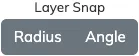
Radius Snapping
Section titled “Radius Snapping”When enabled, Radius Snapping allows us to match the radius currently being edited to any other radii on the existing arc layers on the Canvas.
When this is enabled, the radius being edited will snap to the inner and outer radii of any other layer, as well as the center of each arc’s radius.
Angle Snapping
Section titled “Angle Snapping”When enabled, Angle Snapping allows us to match the angle currently being edited to any other angles on the existing arc layers on the Canvas.
Precision Angle Edge Snapping
Section titled “Precision Angle Edge Snapping”When trying to match one arc’s start or end angle to the start or end angle of a tickmarks arc, by default, the angle matched on the tickmarks will be on the center of the tickmarks.
But if instead you need to align with the outside edge of the tickmarks, keep dragging the angles towards that edge of the first/last tickmarks, and you will be able to snap to that outside edge as well.
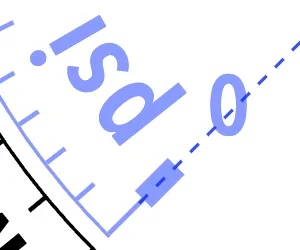
Angle snapping on tickmarks will generally be on the center of a tickmark.
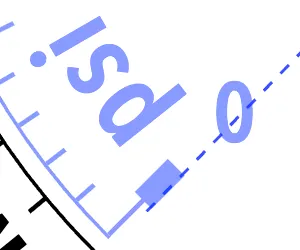
On the first and last tickmarks of an arc we are also given the snap positions on the outer edges of those tickmarks.
Modifier Keys While Editing
Section titled “Modifier Keys While Editing”You can use temporary snapping modifier keys while dragging any action control:
- Holding Shift temporarily applies the middle snap grid (the classic 5 px / 5° segment) regardless of the current Global Snap setting, including when Global Snap is OFF.
- Holding Option/Alt temporarily turns ON layer radius and angle snapping.