Settings Sidebar
The Settings Sidebar has multiple panes with all the parameters you can adjust for:
Layer- Currently active layer settingsGauge- General gauge settingsCanvas- Global canvas settings
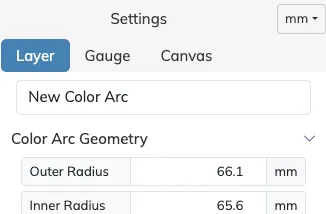
Unit Selector
Section titled “Unit Selector”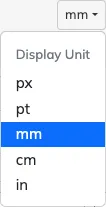
The settings toolbar hosts the measurement unit selector, which changes how every distance measurement field in the app is displayed and edited. See the Measurement Units page for all the details.
Collapsible Sections
Section titled “Collapsible Sections”All the settings sections are collapsible, so you can keep open just the sections you are working with. The arrow on each section header points right when the section is closed, and down when it is open.
When Settings Are Hidden
Section titled “When Settings Are Hidden”Settings that do not apply in the current context are hidden rather than grayed out. For example, the blueprint image controls only appear once a blueprint image is loaded.
So if you cannot find a setting, check first if its feature needs to be enabled or loaded before its options appear.
Layer Settings
Section titled “Layer Settings”This settings pane will contain the parameters available for the currently active layer. If no layer is currently selected there will be no Layer pane.
Geometry Settings
Section titled “Geometry Settings”The Geometry settings fields are the same between all Arc layer types, and the same between all Detail layer types. You can see the details of each group of settings on the corresponding layer pages:
Options Settings
Section titled “Options Settings”The Options settings are specific to each layer type and allow for the adjustment of any other detail of a layer that is not related to the core geometry.
See each layer type page for all the details:
- Color Arc Layer
- Tickmarks Arc Layer
- Text Arc Layer
- Text Detail Layer
- Image Detail Layer
- Shape Detail Layer
Gauge Settings
Section titled “Gauge Settings”The Gauge Settings control the size, position, rendering and export options that impact the entire gauge. Like the Layer pane, the Gauge pane is only shown while a gauge is selected.
Check the Gauge Settings page for full details.
Canvas Settings
Section titled “Canvas Settings”The Canvas Settings control rendering, defaults, blueprint (image underlay), export/print, color swatches and file options that impact the entire canvas.
Check the Canvas Settings page for full details.