Overall Layout
GaugeMaster Pro is divided into three dedicated functional areas:
| Operation | Location | Description |
|---|---|---|
| Layers | Left Sidebar | Manage all the gauges on your canvas, and the layers that make up each gauge. |
| Canvas | Center | Drawing area where you can interact directly with your gauge components, |
| Settings | Right Sidebar | All the settings for Layers, Gauge and Canvas. |
These areas are related to each other, with the Layers defining the components of your Gauges, while the Settings establish how those components are represented on the Canvas. The Canvas will show at all times the resulting Gauges, which is what you will eventually export or print.
A canvas can hold any number of gauges, and each gauge is made up of its own layers. The app can also be used in light or dark mode with the Color Theme selector.
It’s All About the Layers
Section titled “It’s All About the Layers”GaugeMaster Pro is a layer based design app, allowing for unlimited design freedom to combine as many of the available layers as required by your gauge creations.
The app has two main types of layers, Arc layers and Detail layers. Arc layers are used to add the arcs and scales that make up a gauge. Detail layers are used to add one-off items, like labels or logos usually required to complete a gauge design.
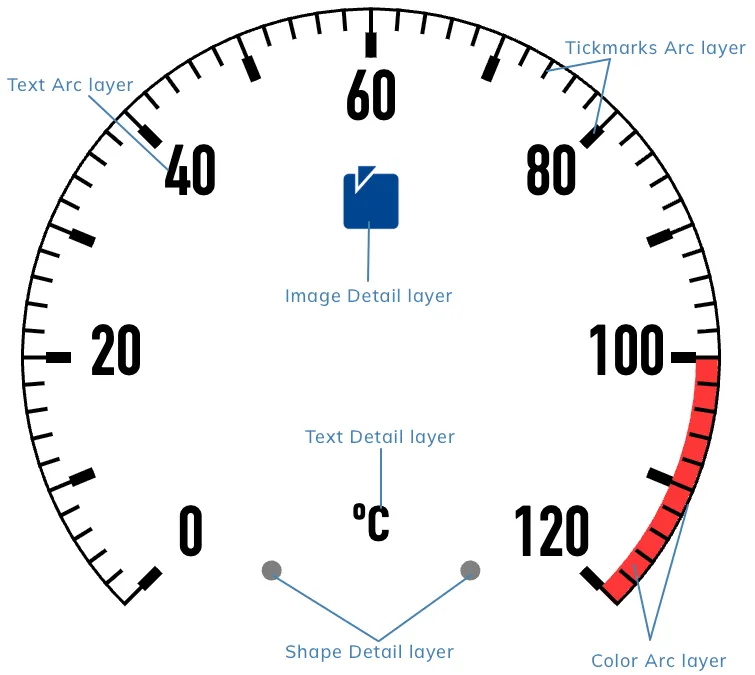
Layers Common Settings
Section titled “Layers Common Settings”There are a couple of general settings that are available on most layers, color and fonts, these are described in Layers Common Settings.
Arc Layers
Section titled “Arc Layers”All Arc layers share some common geometry settings described in Arc Layers Geometry Settings.
Besides the geometry settings, each layer will have specific settings for their content and formatting:
Detail Layers
Section titled “Detail Layers”Like with Arc layers, all Detail layers share some common geometry settings described in Detail Layers Geometry Settings.
Besides the geometry settings, each layer will have specific settings for their content and formatting: